Manage Your Email List with Podio & GlobiMail
A healthy email list isn’t just “nice to have.” It’s the foundation of good deliverability, accurate campaign reporting, and reliable communication. The reality is that most workspaces accumulate outdated contacts over time, and those old addresses can quietly drag down your sender reputation. The good news is that Podio and GlobiMail make it easy to maintain a clean, structured list that works seamlessly with Campaigns.
This post walks through how to set up your email list in Podio, track subscription status, use it for Campaigns, and keep the data clean with GlobiMail’s reporting.
Create a Central Email List in Podio
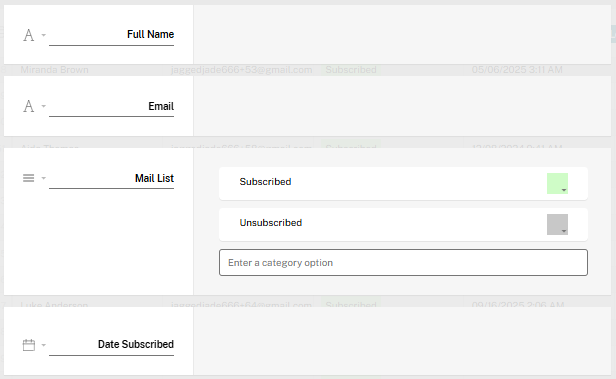
The first step is to build (or refresh) your email list directly inside Podio. The structure can be simple:
- A text/email field for the email address
- A category field for subscription status, such as Subscribed / Unsubscribed
- Any relevant details you want to personalize, like name, customer info, etc
Using a category field makes it easy to sort and filter your list later. Since GlobiMail Campaigns rely on Podio Views, this subscription field becomes the backbone of your campaign targeting.
Subscription Opt-In Tip
If you want to confirm opt-ins properly, you can send a transactional email to verify someone before adding them to your subscribed list. This keeps your data clean from the start and reduces the chances of sending to invalid or uninterested contacts later.
Using Your View in GlobiMail Campaigns
When you send a campaign, GlobiMail doesn’t guess. It looks at the Podio View you select and then:
- Collects every item in that view
- Verifies that the item has an email address in the mapped email field
- Checks each address against your bounce list, unsubscribed list, and for duplicates within the same campaign
Only valid, allowed emails get sent. This means the cleaner your Podio list is, the more accurate and effective your campaigns become.

Understanding the Email Count
The selector shows how many items are in your app or chosen Podio view, and this number must be within your allowed sending limit. When “ALL” is selected, the total reflects how many items currently have email addresses based on our cache, marked with a (~) since it’s only an estimate. When you choose a specific view, the count shows “Unknown Emails” because GlobiMail can’t verify which items contain email addresses until the campaign is actually processed.
Review Campaign Reporting
After sending, GlobiMail provides campaign reporting so you can review:
- Sent – number of emails processed in the campaign
- Delivered – emails successfully delivered
- Opened – emails opened
- Clicked – emails that had links clicked
- Bounced – emails that had a hard bounce
- Unsubscribed – emails that unsubscribed during this campaign
- Spam Complaints – addresses that explicitly clicked “Report Spam”
- Unsent – items that were collected but unsent due to unsubscribed status, spam reports, or duplicates
These metrics help you understand who actually received your message, who engaged with it, and who needs to be cleaned from your list. You can download each dataset from the Campaign screen to manually update your Email List, or take it a step further by automating the cleanup process.
Reading the Campaign Report
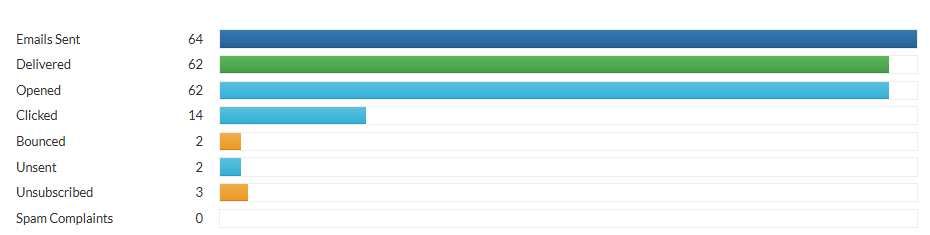
This campaign pulled 66 items from the selected view, sent 64 emails, and flagged 2 as unsent because they were duplicates. All 64 attempted messages were delivered, with 2 returning hard bounces. Every delivered email was opened, 14 generated link clicks, and 3 recipients unsubscribed. These stats give a clear snapshot of list quality and engagement so you know exactly what needs cleanup or follow-up.
A Clean List = Better Deliverability
Consistently emailing invalid addresses leads to repeated hard bounces, which can harm your sender reputation. If you send to a list with 200 bad emails, mailbox providers start throttling your domain, and even your valid contacts may land in spam. Keeping a clean list ensures higher deliverability with fewer suppressed contacts for reliable campaign performance and long-term engagement. And while the GlobiMail Campaign Manager will flag previous hard bounces in the Unsent section automatically, it’s still important to maintain your list, especially if you’re sending mailouts through Podio Workflow Automation, where those extra safeguards aren’t built in. A little steady maintenance goes a long way.
Resources
- Automate Cleanup
Learn how to trigger Podio updates when email statuses change, including Bounced and Unsubscribed. - GlobiMail Help Manual
Full documentation covering setup, Campaigns, status tracking, and advanced configuration.
 by
Andreas Huttenrauch
by
Andreas HuttenrauchOwner of Globi Web Solutions, and Podio Fanatic.
comments powered by Disqus